Most of a practitioner’s admin happens around the appointment rather than in the diary: the note you write afterwards, the consent form the patient fills in before, and the settings you set up once and forget. This release is about that part of the day. Here’s what’s new, and how to start using each piece.
Treatment-note templates
Every treatment you offer tends to produce the same note, with the same findings in the same order. A note template turns that into a short form, so your notes come out consistent and take less time to write.
A template is built from fields, and each field asks for one thing:
- Short text and Long text for anything you’d normally type
- Choose one, Choose any that apply and Yes / No for findings you tick off
- Number (with unit), such as 120 mmHg or 4 cm
- Scale, 0 to 10, for pain or symptom scores
- Date
- Left / right pair, for anything you record on both sides, such as ear canals or knees
- Standard statement, wording you use every time (for example an aftercare paragraph), filled in for you and still editable for that patient
- Section heading, to split a long note into parts
- Body chart, covered below
Fields are optional unless you make them required, because on the day not every question applies.
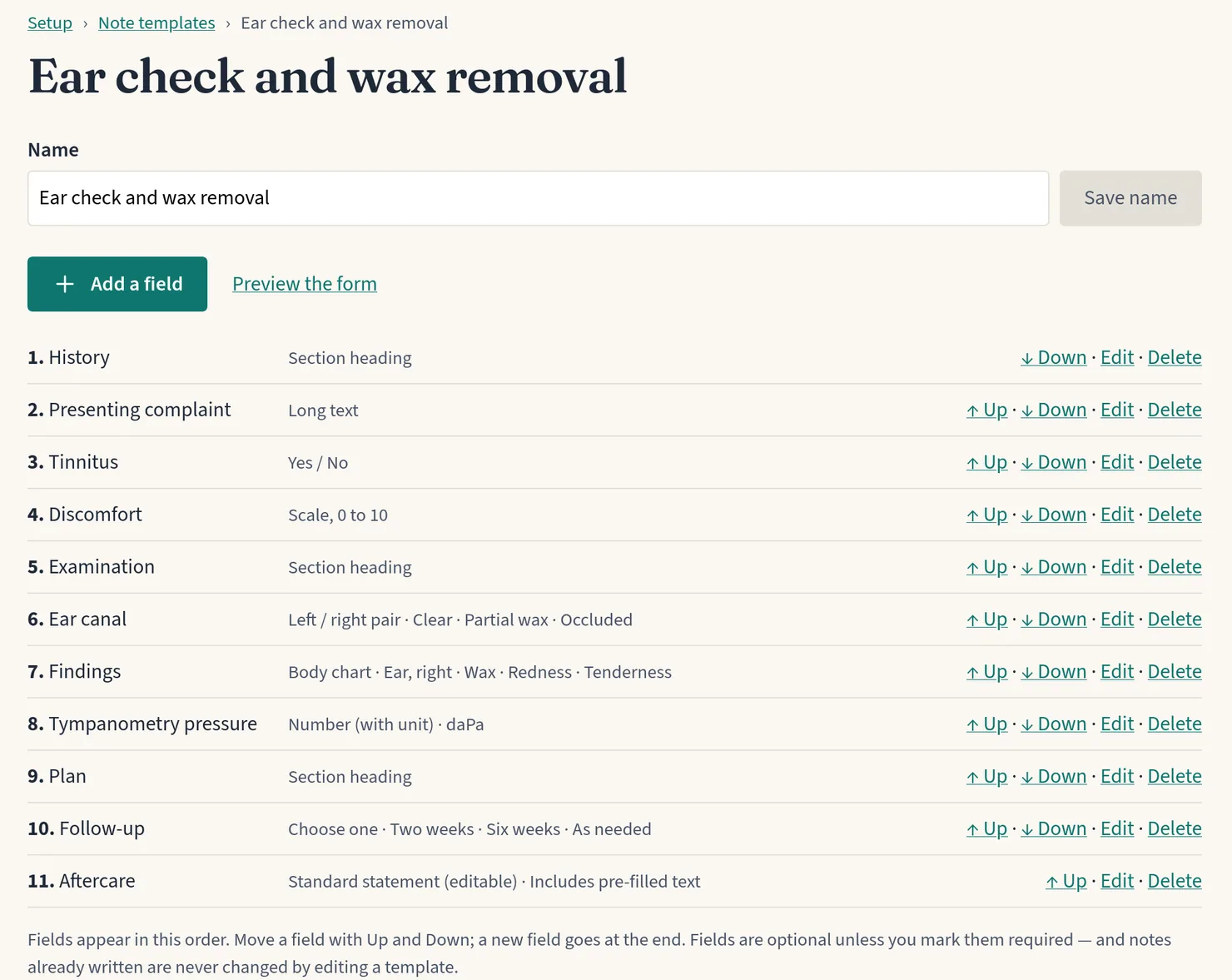
How to set one up
- Go to Setup → Note templates and choose Add a template.
- Give it a name, then use Add a field for each thing you want to record.
- Use ↑ Up and ↓ Down to put the fields in order, and Preview the form to see exactly what you’ll fill in.
- Go to Setup → Services, edit a service and choose the template under Treatment note template. That template becomes the default for every appointment of that service.
Already have a template that’s nearly right for another treatment? Choose Duplicate on the template list, rename the copy and adjust it.
Your note is still saved as readable text too, so notes search finds what you wrote in a template just as it finds a free-text note. Changing a template later never rewrites notes you’ve already written.
One “Add note” button
There is now one way to write a note: Add note, on the appointment or the patient’s record. It opens the service’s template if it has one, or a plain text box if it doesn’t.
Need something different this time? Choose another template in Write with, or plain text, and press Switch.
Body charts
Some findings are easier to show than to describe. A body chart field puts an outline in your note, and you mark it with numbered pins. Each pin has a type, such as Pain, Numbness or Wax, and a short note of its own.
Eight outlines are built in: body front and back, ear left and right, eardrum left and right, and foot sole and top. You can also upload your own PNG or JPEG under Setup → Note templates → Body chart images.
How to use one
- In a note template, use Add a field, choose Body chart, pick an outline or one of your images, and list the pin types you use.
- When you write the note, click the chart where you want a pin. It’s numbered automatically, and you choose its type and add a note beside it.
- Pins can be retyped, re-noted or removed before you save.
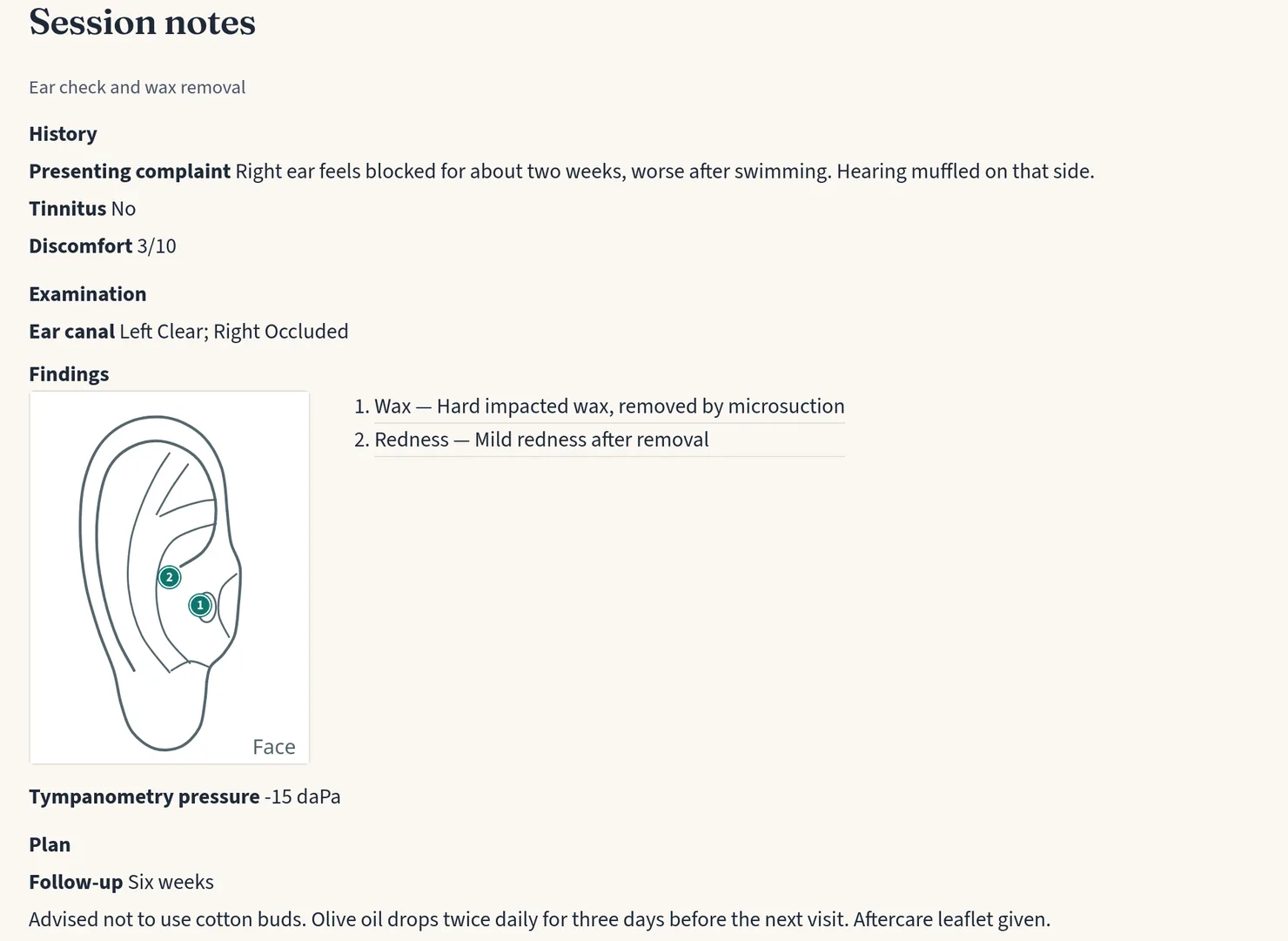
The pin notes become part of the note’s text, so they’re searchable as well. If you later switch the template to a different image, older notes keep the image they were marked on.
Consent forms you write once
Consent forms are now settings of their own, under Setup → Consent forms, rather than living inside a single service. Write a form once and choose it for as many services as you like, under Consent form on each service. Note templates work the same way: one template can serve several services.
Consent forms have the same builder as note templates: ↑ Up / ↓ Down to reorder, Preview the form to see what the patient sees, and Duplicate to start a variation.
Spreadsheet import and export
Both note templates and consent forms can now go in and out of a spreadsheet, which is handy for editing a long form in Excel or Google Sheets, keeping a copy, or sharing a template with a colleague.
How to
- Export: open a template or consent form, go to Export or import a spreadsheet (CSV), and download the file.
- Edit: one row per field, in order. The row order is the field order.
- Import: use Import from a CSV file on the template or consent form list to create a new one, or import into an existing one to add fields to the end or replace them all.
If a row has a problem, nothing is saved and you’re told which row to fix, so a half-imported form can’t happen.
A Setup page you can search
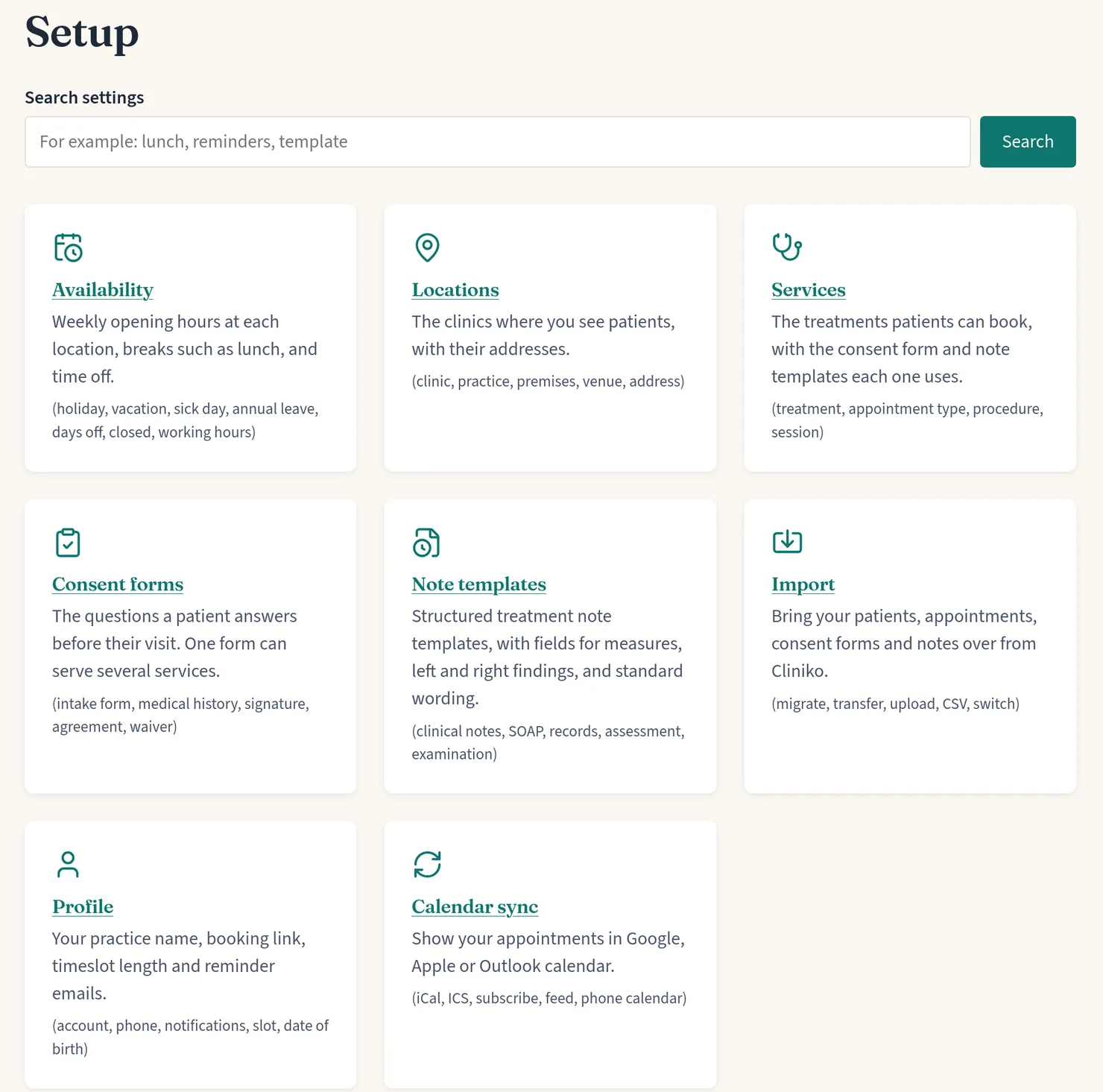
Everything you configure once now lives on one Setup page: availability, locations, services, consent forms, note templates, import, your profile and calendar sync. Start typing in the search box and the page narrows as you go. “holiday” finds Availability and “SOAP” finds Note templates. Every settings page also shows where you are, with a link back to Setup.
Quicker patient selection when you book
When you book an appointment for a patient yourself, choosing them is now one step at a time:
- Start typing a name, email or phone number and pick them from the suggestions.
- Check their name, email and phone on the card, then Continue with this patient.
Someone new? Choose New patient instead and fill in their details. Booking from a patient’s own record still skips this step altogether.
Also fixed
When you book an appointment yourself, an appointment at any of your locations now blocks that hour everywhere, including at a location you’ve switched off. This matters most after an import, when an old clinic may still hold future appointments.
Try it
All of this is live now. If you’re already using Praxbook, open Setup and build your first note template. It takes a few minutes and saves time on every appointment after.
New here? Start your free trial, and if you know a practitioner in private practice still working from paper notes and phone bookings, send them this post.